

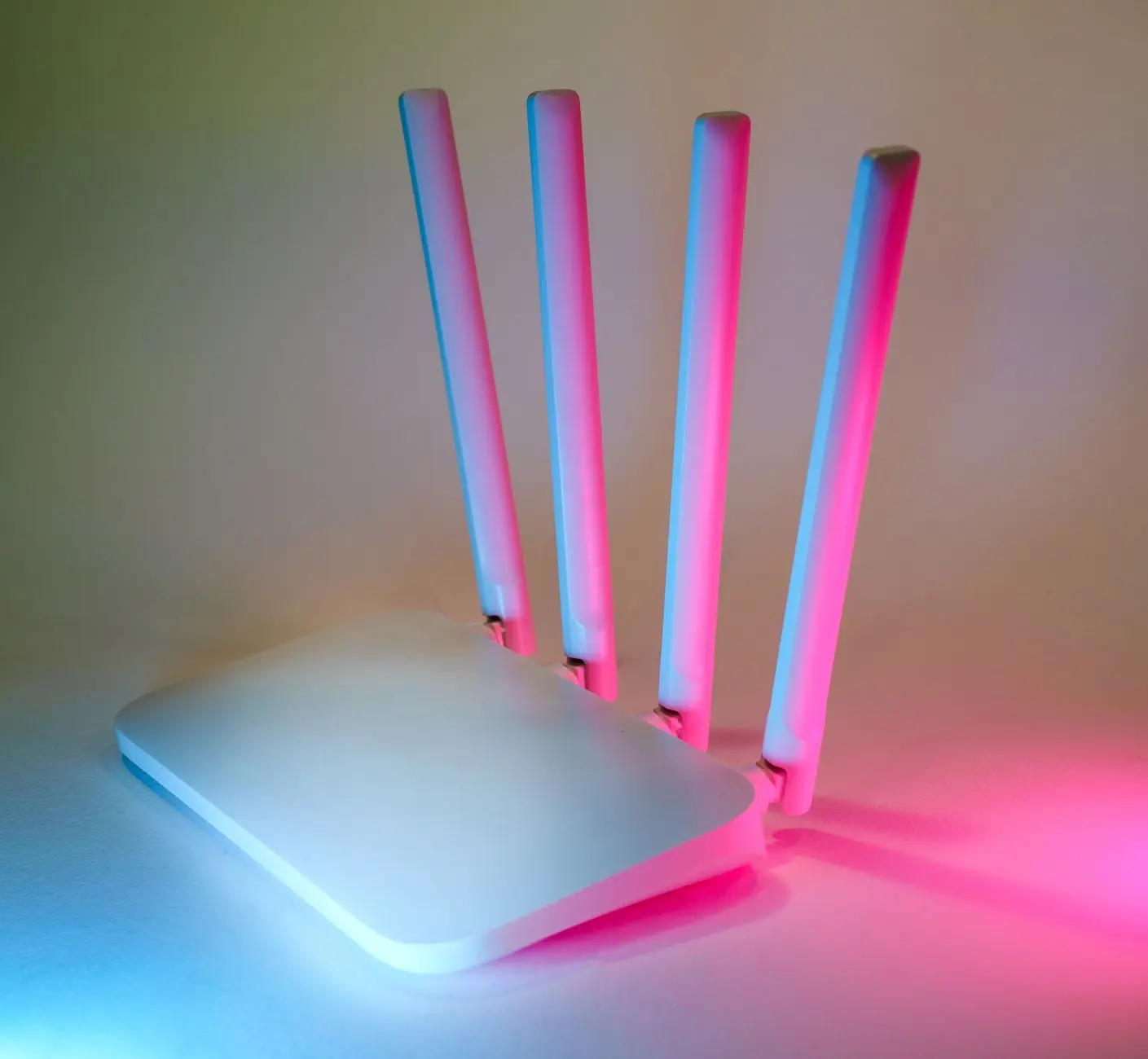
After years of dealing with Wi-Fi coverage issues in homes and small offices, I’ve noticed that most people blame their router when the real culprit is usually the environment between the device and the access point. The signal doesn’t just weaken randomly. There are predictable physical reasons why your connection deteriorates in certain rooms, and understanding them changes how you approach the problem.
The most straightforward issue is distance. Wi-Fi operates on radio frequencies that lose strength the farther they travel from the source. This follows a predictable pattern, but it’s not linear. The signal doesn’t drop by the same amount every meter. Instead, it degrades more sharply as distance increases, especially when obstacles are in the way. A router in your living room will deliver fast speeds nearby, but move to a bedroom two walls away and you’ll notice a tangible difference. This is physics, not a product defect.
What complicates distance, though, is what sits between you and the router. Different building materials absorb and reflect radio waves at different rates. Drywall is relatively transparent to Wi-Fi signals, but concrete, brick, and stone are not. If your router is on one side of a concrete foundation wall and you’re working upstairs, the signal has to pass through dense material that attenuates the waves significantly. I’ve seen homes where a bedroom directly above the router gets worse signal than a room across the house on the same floor, simply because of what’s underneath.
Metal and Moisture as Silent Killers
Metal is particularly problematic. Refrigerators, filing cabinets, metal studs in walls, and even aluminum foil insulation can reflect and absorb Wi-Fi signals. I once helped troubleshoot a home office where the signal was unusually weak despite being only 15 feet from the router. Turned out there was a large metal shelving unit positioned between the two, acting like a partial barrier. Moving the router a few feet to the side made a noticeable difference. The metal didn’t block the signal entirely, but it scattered it and reduced the effective strength reaching the desk.
Water is another factor that often goes unnoticed. Aquariums, water coolers, and even the water inside walls during humid conditions can absorb Wi-Fi energy. I’ve observed this most clearly in bathrooms, where humidity levels spike and plumbing runs through walls. A bathroom positioned between your router and a bedroom can create a dead zone that seems disproportionate to the actual distance involved. The water isn’t a complete barrier, but it degrades signal quality in ways that distance alone doesn’t explain.
Interference and Crowded Channels
Beyond physical obstacles, interference from other devices is common and often invisible. Most home Wi-Fi routers operate on the 2.4 GHz band, which is also used by microwaves, cordless phones, baby monitors, and Bluetooth devices. When multiple networks in your neighborhood are broadcasting on the same channel, they compete for airtime. Your connection doesn’t necessarily drop, but throughput suffers because the router and your device spend time waiting for clear space to transmit.
The 5 GHz band has more available channels and less interference from household appliances, but it has a significant tradeoff: it doesn’t penetrate walls and obstacles as effectively as 2.4 GHz. A room that gets poor 5 GHz coverage might work fine on 2.4 GHz, even though 5 GHz is theoretically faster. Some devices automatically switch between bands, and this switching can happen at unfortunate moments, causing brief slowdowns or disconnections.
I’ve found that many people don’t realize their router is broadcasting on a congested channel until they actually check. Most routers default to channels 1, 6, or 11 on 2.4 GHz, which means if your neighbors are using the same defaults, you’re all competing. Switching to a less crowded channel often improves real-world performance in a way that feels almost magical, but it’s simply reducing interference.
Router Placement and Antenna Orientation
Where you position the router matters more than most people think. Placing it in a corner, inside a cabinet, or near the floor significantly reduces coverage in the rest of the house. The router radiates signal in a pattern that depends on antenna design and orientation. Most home routers have omnidirectional antennas that broadcast roughly equally in all directions, but the pattern isn’t a perfect sphere. Dead zones naturally occur, and poor placement amplifies them.
I’ve seen routers positioned behind entertainment centers or inside closets because they’re out of sight. The convenience of hiding the device usually costs you coverage. Elevated, central placement – ideally in an open area – performs better across the board. If your router has external antennas, their orientation also affects coverage. One antenna vertical and one horizontal can improve coverage in different directions, but this is a minor adjustment compared to the impact of placement itself.
The age of your router plays a role too, though not always in the way people assume. An older router isn’t necessarily slower, but it might not support newer Wi-Fi standards or handle multiple devices as efficiently. More importantly, router performance degrades over time as dust accumulates on components and capacitors age. I’ve noticed that routers running for years without a restart sometimes improve noticeably after a power cycle, suggesting thermal or memory-related performance drift.
How Your Device Factors In
The device you’re using also determines how well it receives the signal. Older phones and laptops have less sensitive antennas than newer models. A room that shows weak signal on an older device might be perfectly usable on a newer one, or vice versa. Some devices also have poor antenna placement. A laptop with the antenna near the bottom edge might show weaker signal when held at certain angles compared to a device with better antenna design.
Metal cases and certain materials used in device construction can reduce antenna performance. I’ve noticed that some phones perform noticeably better when held in certain orientations because the hand placement affects antenna efficiency. It’s a minor effect in most cases, but in areas where signal is already marginal, it can be the difference between a usable connection and a frustrating one.
The real pattern I’ve observed over time is that slow Wi-Fi in certain rooms is rarely a single cause. It’s usually a combination: distance plus obstacles plus some interference plus suboptimal router placement. Addressing one factor might help, but the most reliable improvements come from understanding what’s actually happening in your specific space. Moving the router, changing the channel, and checking for physical obstacles typically solve the problem more effectively than upgrading equipment or calling for service.